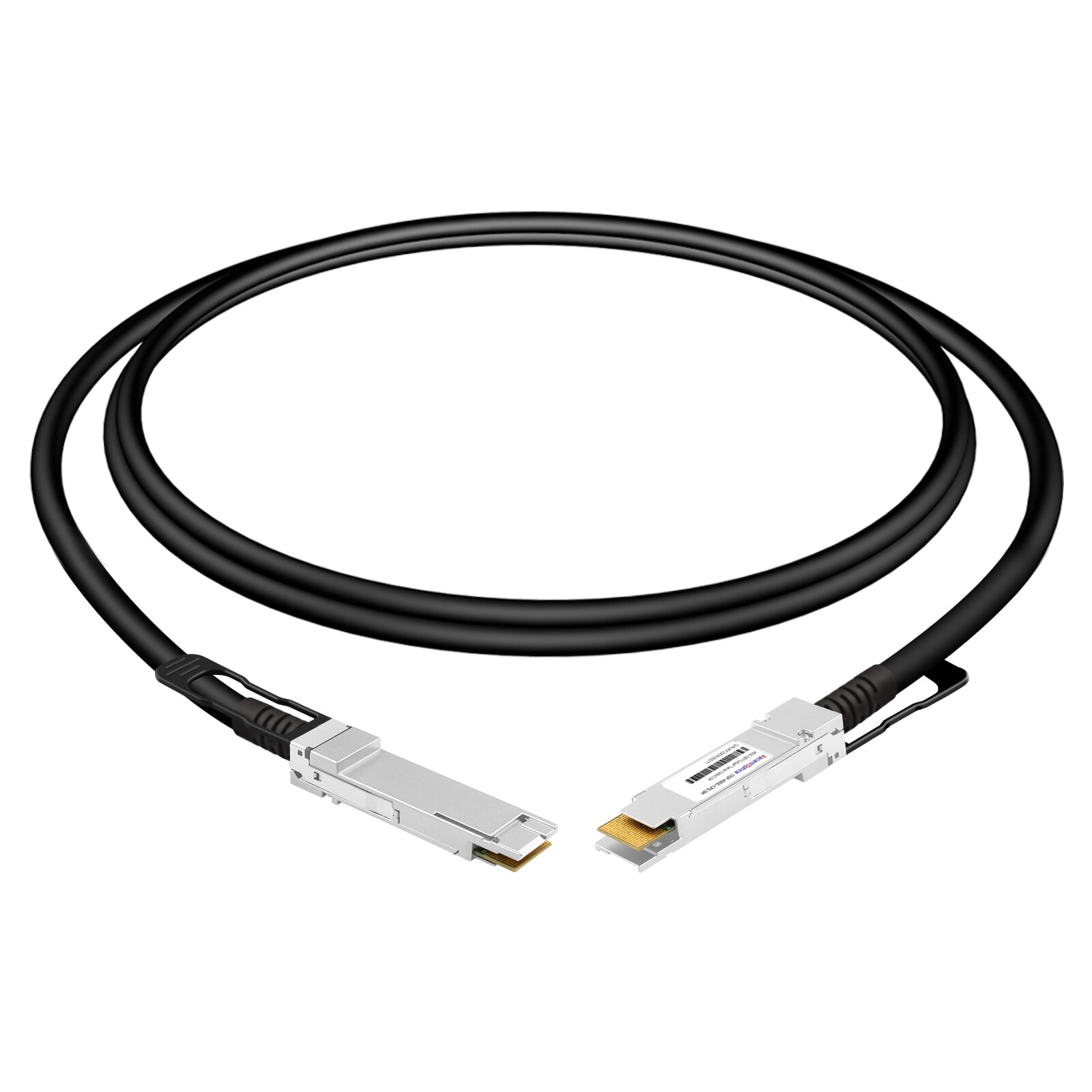
A freshly seated 100G QSFP28 DAC cable sits in the rack, but the switch port refuses to come up. The link LEDs stay dark, and the maintenance window is closing. If you have worked in a data center for any length of time, you know this feeling. A direct attach copper (DAC) cable is supposed to be the simplest interconnect there is, yet a surprising share of “bad cable” failures turn out to be seating, configuration, or compatibility problems.
What Is a DAC Cable?
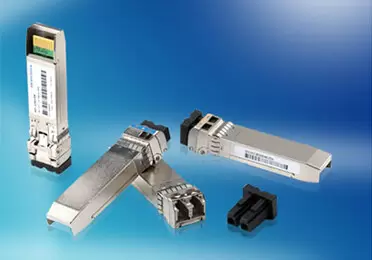
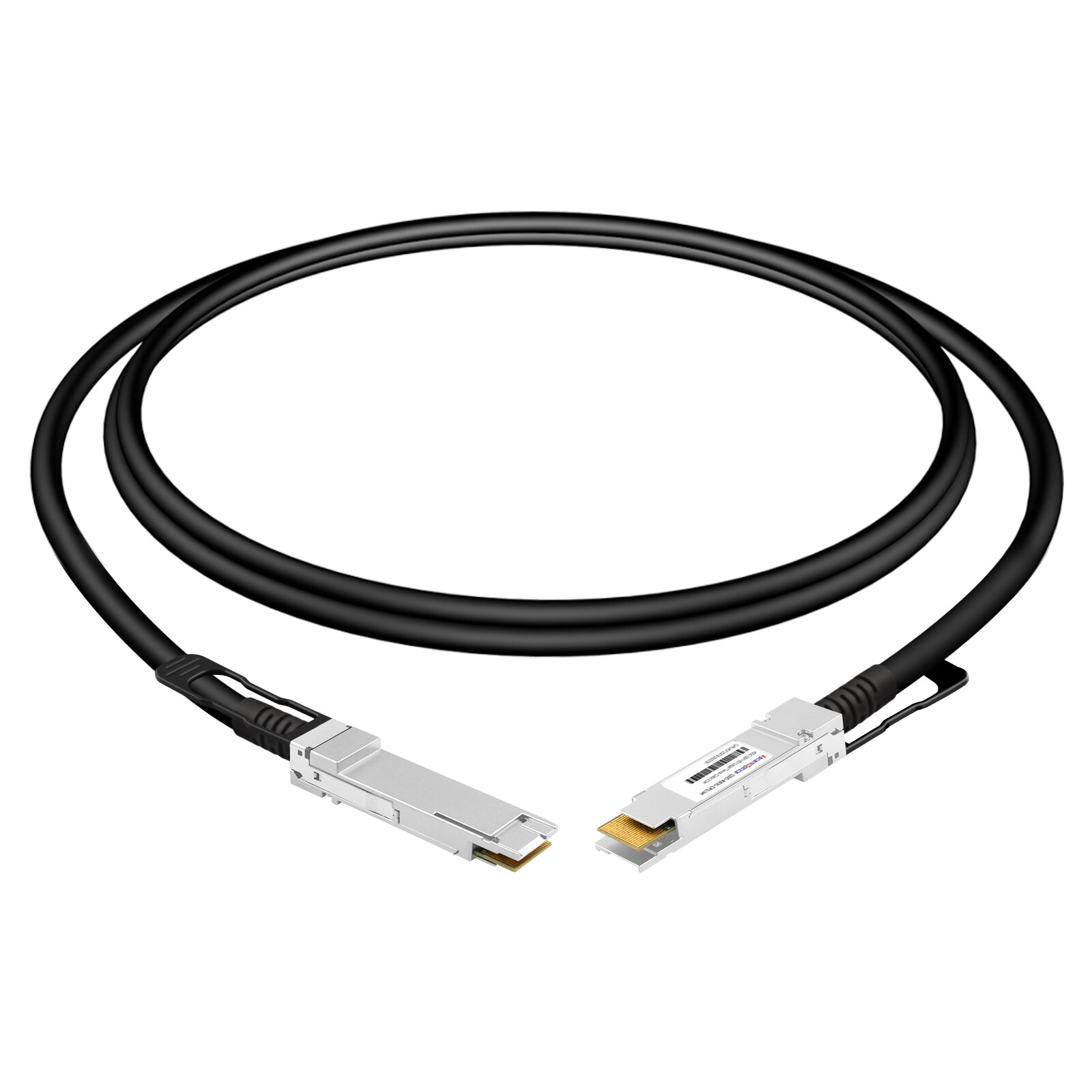
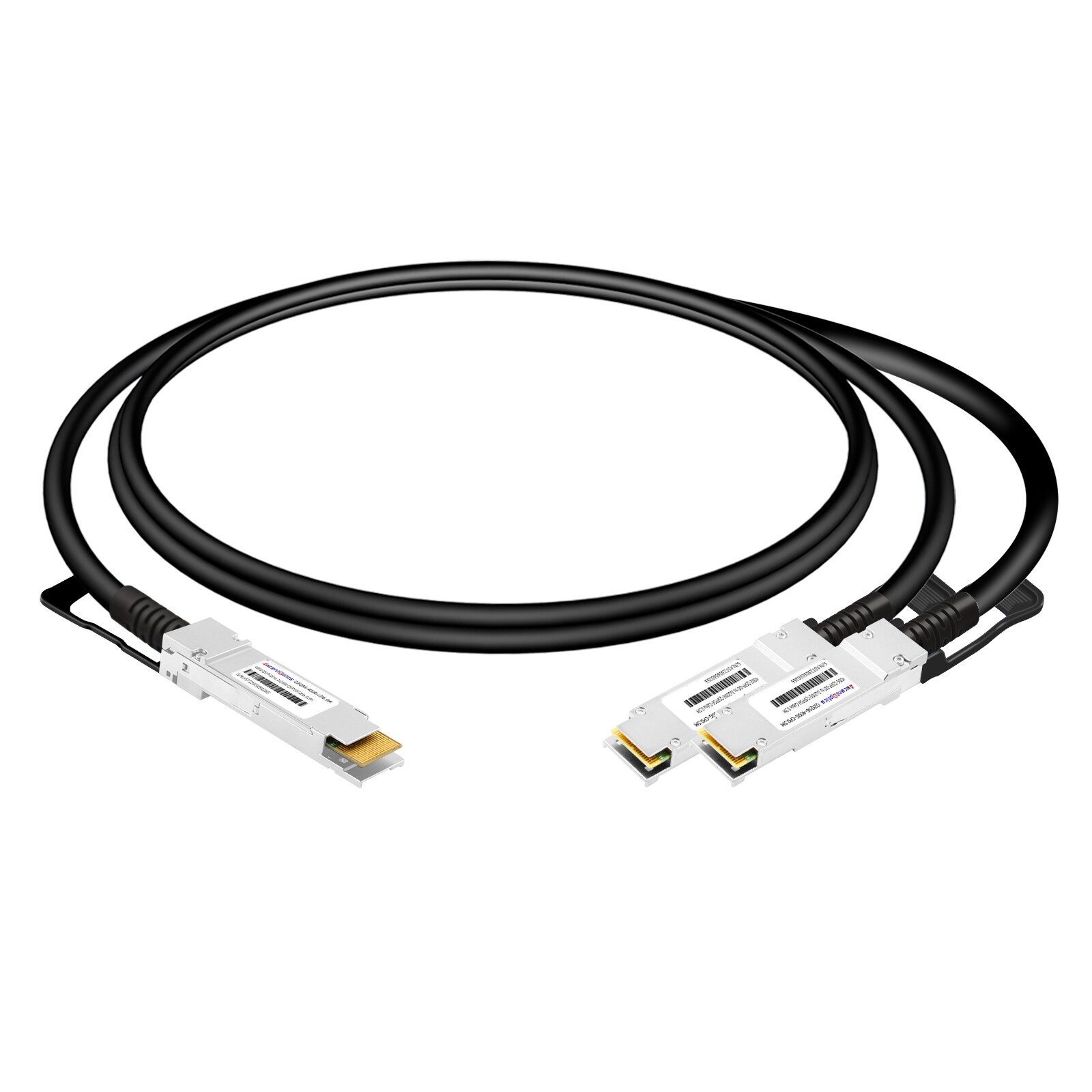
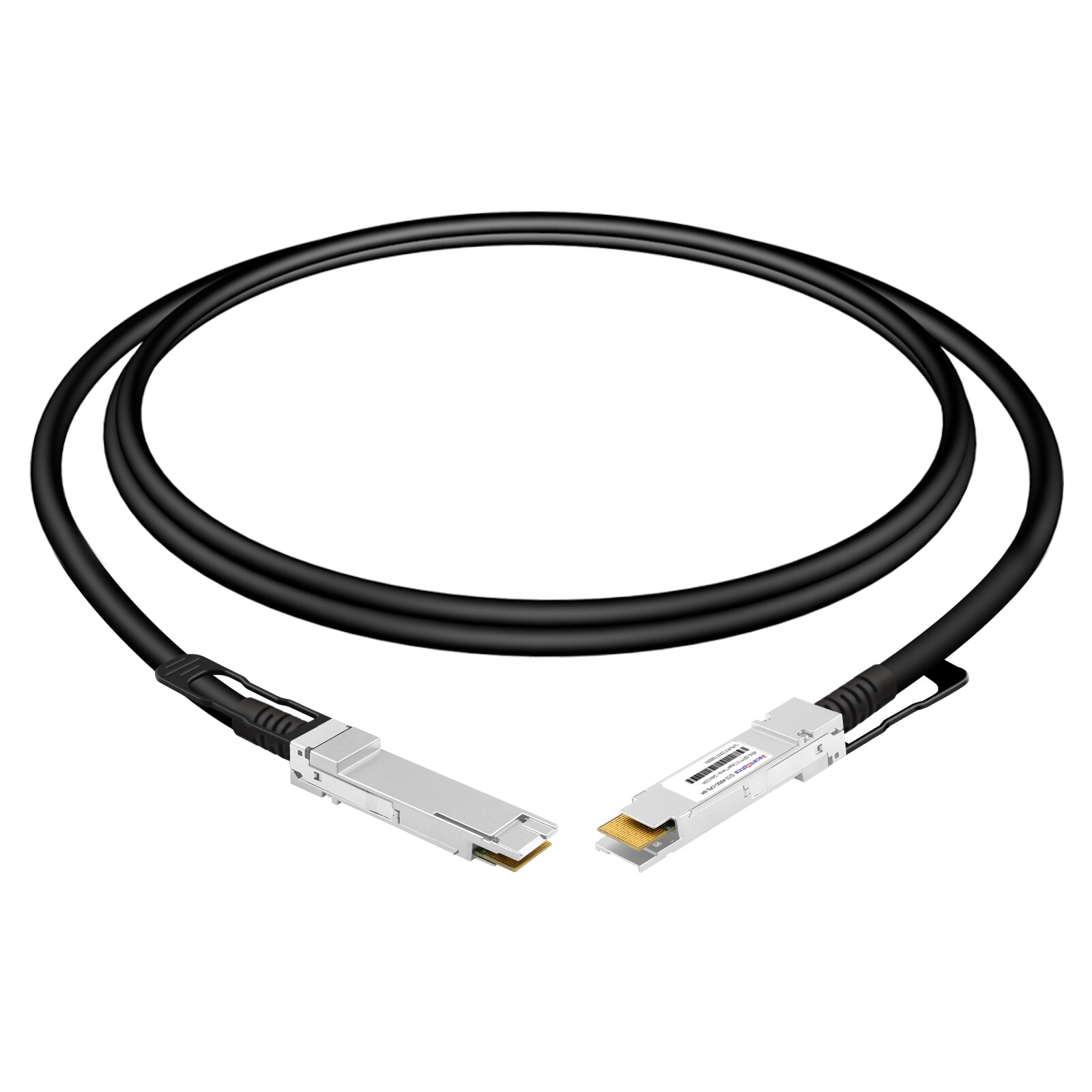
A direct attach copper cable is a factory-terminated twinaxial copper assembly with transceiver-style connectors already attached to both ends. It plugs directly into SFP+, SFP28, QSFP+, QSFP28, QSFP-DD, or OSFP ports, so you don’t need a separate optical transceiver and fiber patch cord.
DAC cables come in two forms. Passive DACs do not require active signal-conditioning electronics, resulting in very low power consumption compared with active copper and optical interconnects. Active DACs, also known as Active Copper Cables (ACCs), incorporate electronic signal-conditioning components, such as equalizers or retimers, to compensate for signal loss and improve signal integrity over longer distances. Compared with passive DACs, they typically consume more power and cost more.
For a fuller treatment of form factors and passive-versus-active trade-offs, see our guide on what a DAC cable is.
Pre-Installation Checks for DAC Cables
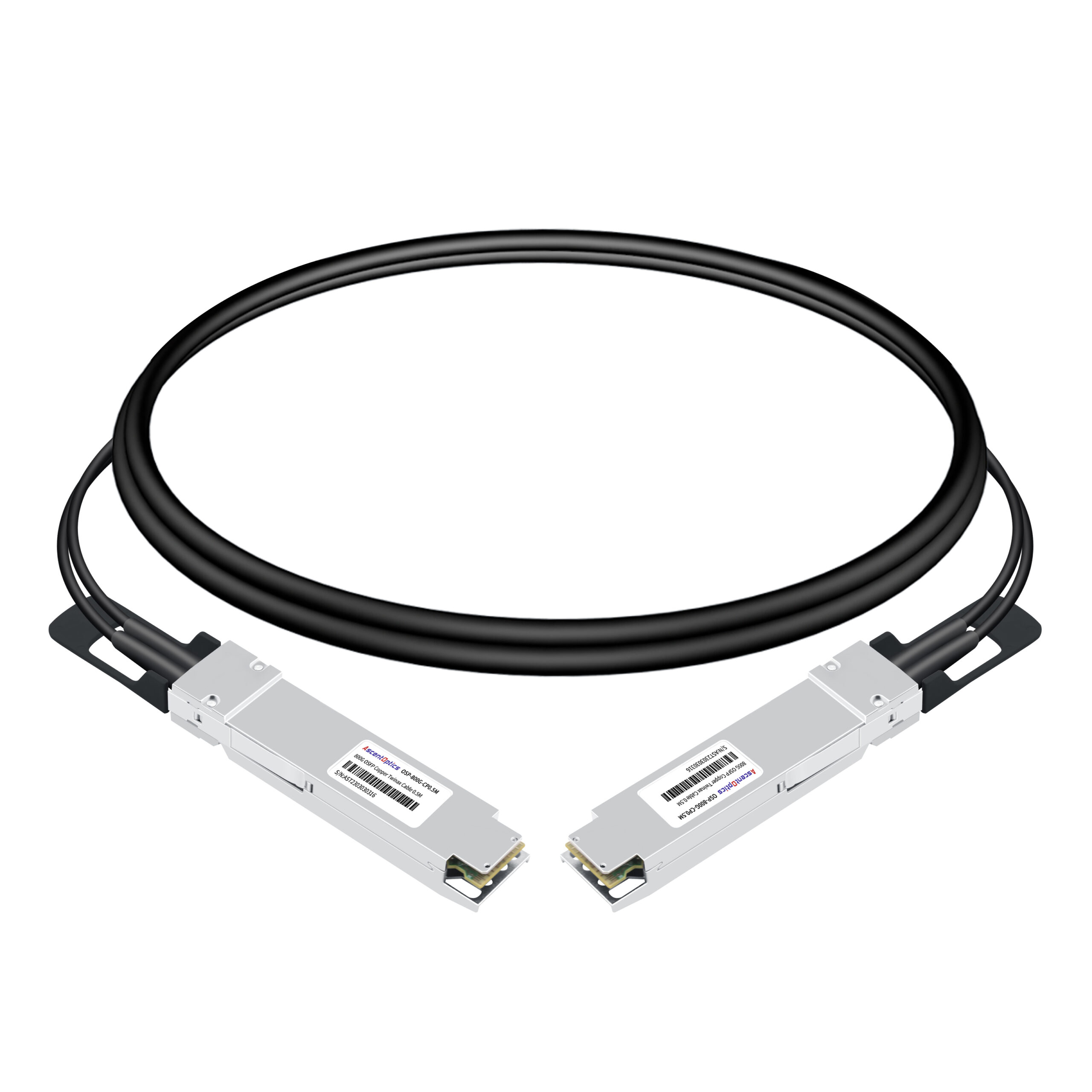
Most DAC cable installation failures are decided before you touch the connector. Spending two minutes on these checks prevents a wasted maintenance window.
Confirm Port, Speed, and Form-Factor Compatibility
A DAC cable must be compatible with the form factor, supported data rate, and interface requirements of both connected devices. Some ports support multiple operating speeds or breakout configurations, but compatibility depends on the host platform and port configuration. Always verify the switch and NIC specifications before installation.
Verify Vendor Coding and Compatibility
Many switches and network adapters read the cable’s EEPROM information during insertion to identify the cable and verify compatibility. Depending on the platform, compatibility checks may involve the vendor name, vendor OUI, part number, and other identification fields. Unsupported cables may trigger warnings or be rejected by the device.
An uncoded or generic DAC can be rejected with a log entry like “unsupported transceiver” or “GBIC not supported.” Cisco, Arista, Juniper, and H3C all enforce some form of this check.
If your platform has a third-party unlock command, such as Cisco’sservice unsupported-transceiver, you can enable it. The cleaner approach is to use DAC cables that are pre-coded for your switch platform at manufacturing time.
Confirm Reach: Passive vs. Active Distance Limits
Passive DAC reach shrinks as speed rises because higher-rate PAM4 signals tolerate less attenuation. A common rule of thumb is the “7-meter wall”: passive DACs are reliable to roughly 5 to 7 meters, and beyond that you should move to active copper or an active optical cable (AOC).
Within a rack, where most server-to-top-of-rack runs are under 3 meters, a passive DAC is almost always the right call. If you’re deciding between a DAC and a pluggable optical module, our DAC cable vs. optical module comparison lays out the distance and cost trade-offs.
Observe ESD Precautions
Electrostatic discharge (ESD) can damage sensitive electronic components inside network equipment and cable assemblies. Follow standard ESD handling procedures, use a properly grounded wrist strap when required, and avoid touching exposed electrical contacts.
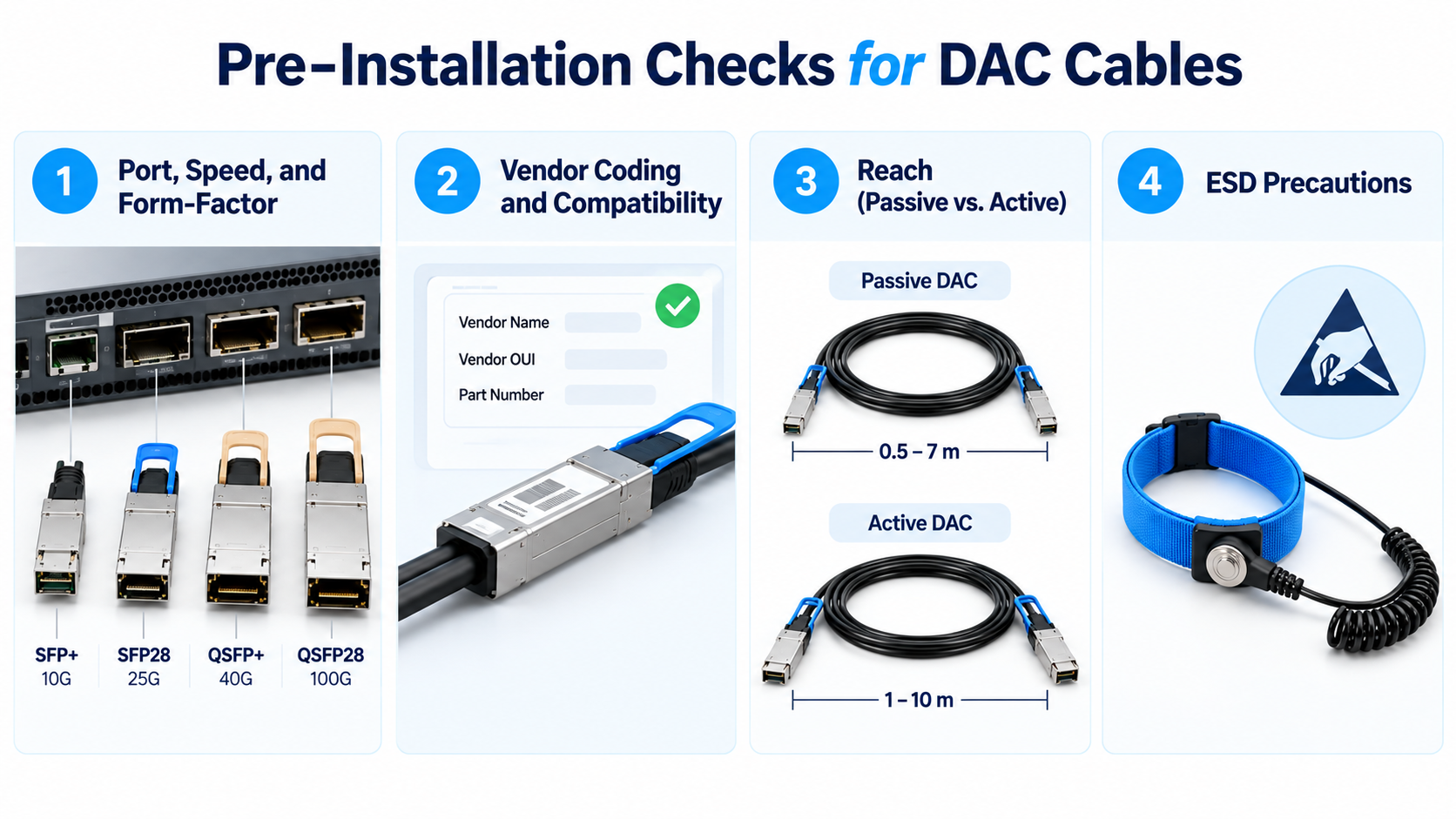
How to Install a DAC Cable
The installation procedure is consistent across vendor platforms, from H3C and Dell to Check Point and Aruba. Follow these steps in order.
- Ground yourself. Put on an ESD wrist strap and confirm reliable skin contact and grounding.
- Remove the dust plug from the target port.
- Unpack the cable. Take the DAC out of its antistatic bag and remove the protective caps from both connectors.
- Align the connector. Match the module end to the port opening. Ports have orientation-rejection guides, so if the connector doesn’t slide in easily, rotate it rather than forcing it.
- Insert straight and firmly. Align the connector with the port and insert it straight until it is fully seated and the latching mechanism engages. A properly seated DAC is flush with the port face and the pull-tab is fully engaged. Do not force the connector if you encounter resistance.
- Verify the link. Confirm the link LED comes up, then check the interface status and error counters in the switch CLI.
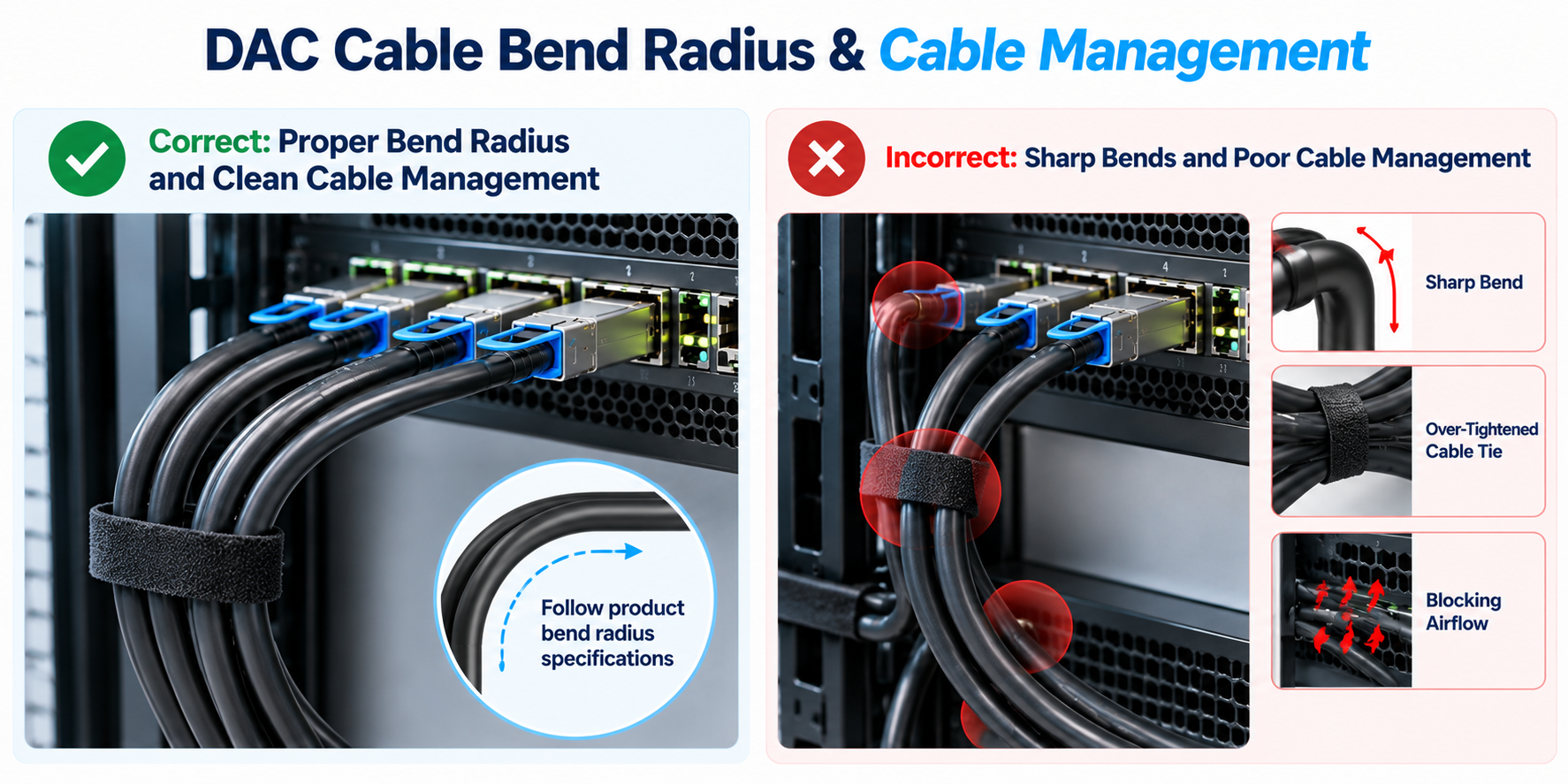
- Dress the cable. Route the cable with gentle curves and secure it with hook-and-loop ties, never plastic zip ties.
To remove a DAC, hold the connector body and gently pull the release tab straight back. Don’t yank the cable itself, and don’t twist the connector while extracting it.
A word on force: if a DAC needs significant pressure to seat, stop. A connector that fights you is usually misaligned or the wrong form factor. Forcing it can bend a pin or damage the port cage, which is a far more expensive repair than the cable.
DAC Cable Bend Radius and Cable Management
DAC cables are thicker and stiffer than fiber, so bend radius and airflow deserve attention during installation.
Minimum Bend Radius
The minimum bend radius of a DAC cable depends on its construction, cable diameter, and manufacturer specifications. Avoid sharp bends, excessive twisting, and repeated mechanical stress, especially near the connector strain relief. Always follow the minimum bend radius specified in the product datasheet.
Airflow and Thermal Impact
Thick twinax bundles can obstruct airflow in dense racks and force switch fans to ramp up, which quietly erodes the power savings a passive DAC is supposed to provide. Route DAC cables neatly to avoid obstructing airflow through equipment inlets and exhaust vents. Keep cable bundles organized, avoid excessive cable accumulation, and maintain sufficient clearance around fans and ventilation openings.
Consider a hyperscale team that cabled a full row of top-of-rack switches with 24 AWG QSFP28 DACs. The links worked, but switch fan speeds climbed steadily and the thermal alarm threshold was reached under load. Rerouting the bundles out of the exhaust path with hook-and-loop ties dropped fan duty cycle back to normal, with no change to the cables themselves. The lesson: cable management is part of link stability, not just tidiness.
DAC Cable Troubleshooting: No Link and Link Errors
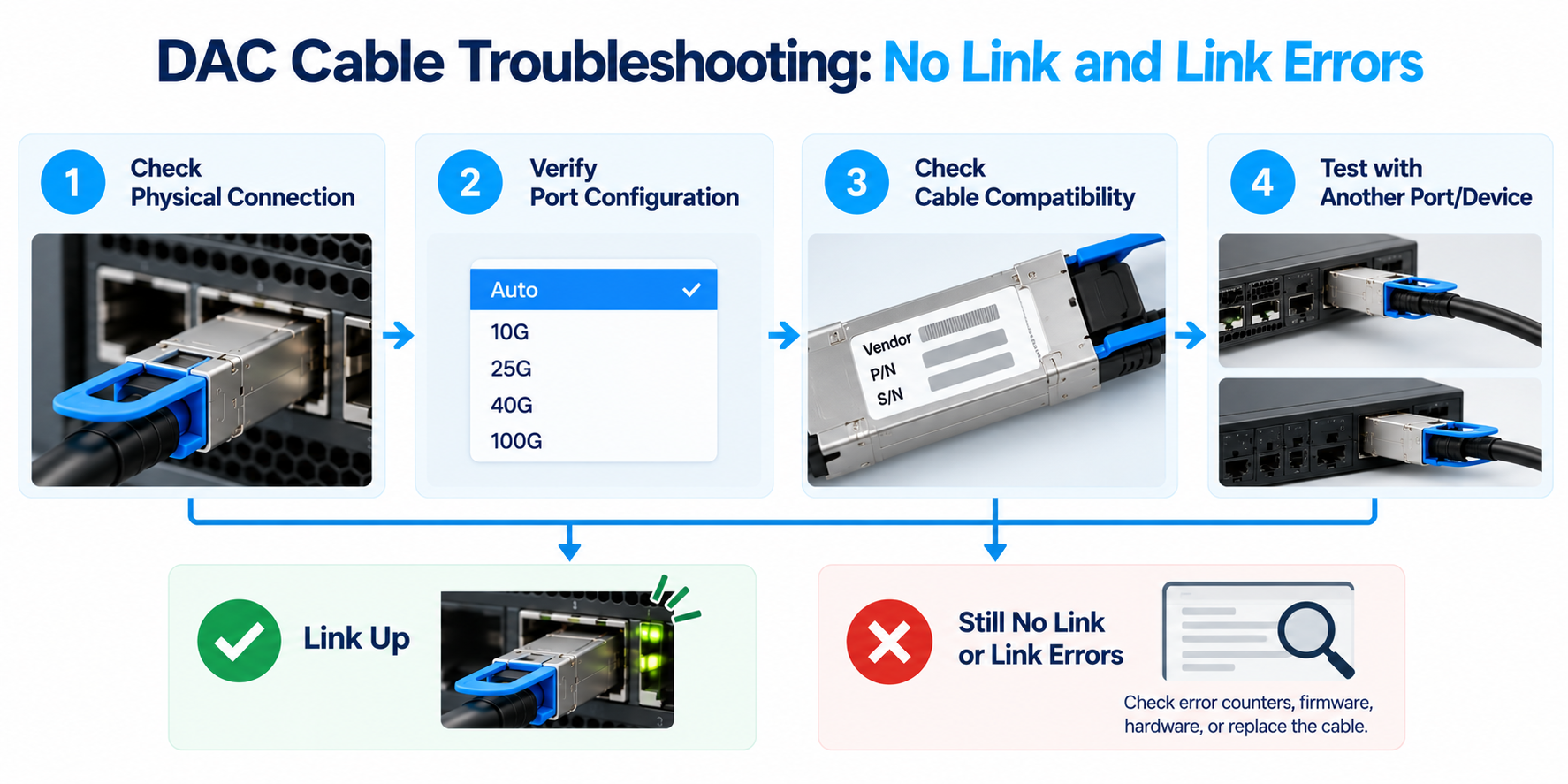
When a link doesn’t come up, work the problem in a fixed order. Most issues resolve in the first two steps.
The Five-Step Triage Flow
- Inspect and reseat. Remove and re-insert the DAC at both ends until the latch clicks. Check for dust, bent pins, and kinks near the connector.
- Check port status and speed. Confirm that the port is administratively enabled and configured for a speed supported by both connected devices. Check the auto-negotiation settings, FEC requirements, and breakout configuration where applicable. Ensure that both ends use compatible interface settings.
- Check compatibility and coding. Look for “unsupported transceiver” logs. Enable third-party support or swap in a pre-coded compatible DAC.
- Run a swap test. Replace the DAC with a known-good cable of the same length and speed. If the link comes up, the cable was at fault. If it still fails, try a different known-good port to isolate a port fault.
- Capture error counters under load. A link that’s up at idle can still fail under traffic. Collect CRC, FCS, and symbol error counters, plus the link-down reason and transceiver diagnostics, then re-test under the same load that triggered the failure.
No-Link Causes and Fixes
| Symptom or cause |
What to check |
Fix |
| Not fully seated |
Latch click, flush fit, dust or bent pins |
Reseat firmly at both ends |
| Wrong speed or port config |
Port administratively up, forced speed |
Configure interface speed or CR4 autoneg |
| Vendor lock / uncoded cable |
EEPROM, “unsupported transceiver” logs |
Enable third-party support or use a coded DAC |
| Bend radius exceeded |
Kinks near connector, tight curves |
Reroute with gentle bends |
| Faulty cable |
Follows the cable in a swap test |
Replace the DAC |
| Faulty port |
Stays with the port in a swap test |
Isolate and replace the port or line card |
“Unsupported Transceiver” and Coding Errors
This is the most common compatibility failure, and it’s easy to misdiagnose as a dead cable. The switch reads the DAC’s EEPROM at insertion and rejects anything without an accepted vendor code.
If you’re buying DACs in volume, specifying pre-coded compatibility up front removes this entire failure class.
Intermittent Loss and Error Counters Under Load
Intermittent links are the hardest to pin down because the cable tests fine on a bench. The fault is often mechanical, such as a bend that only degrades signal under vibration, or electrical, such as marginal reach at the cable’s distance limit. Collect CRC and FCS counters at the moment of failure, check the transceiver diagnostics (DOM/DDM) for voltage and temperature anomalies, and re-test under realistic load. If a 100G passive DAC is running at the edge of its 3 to 5 meter limit, moving to an active DAC or AOC usually clears the errors.
When to Replace vs. Troubleshoot
Use this rule of thumb. If the fault follows the cable in a swap test, replace it. If the fault stays with the port, the cable was fine and the port or configuration is the issue. And if the distance, airflow, or speed has changed since the original install, the right fix may be a different interconnect entirely, such as an AOC for longer reach or an optical transceiver with fiber for structured cabling. For that decision, our QSFP28 transceiver guide explains the optics side of the equation.
Frequently Asked Questions About DAC Cables
Why is my DAC cable not linking?
A no-link condition usually comes down to one of three causes: the connector isn’t fully seated, the port speed or configuration is wrong, or the cable isn’t coded for the switch. Reseat both ends, force the interface to the correct speed, and check for “unsupported transceiver” logs before replacing anything.
What is the maximum length of a DAC cable?
Passive DACs reach roughly 5 to 7 meters, while active DACs extend to about 10 to 15 meters. Reach drops as speed rises: a 100G QSFP28 passive DAC is reliable to about 3 to 5 meters, and an 800G passive DAC to only 1 to 2 meters. Beyond those limits, use an AOC or an optical transceiver.
Do DAC cables need to be coded?
Many switches require it. Vendors such as Cisco, Arista, Juniper, and H3C read the cable’s EEPROM and reject uncoded cables with an “unsupported transceiver” error. You can enable third-party support on some platforms, but pre-coded compatible DACs are the cleaner fix.
How do I remove a DAC cable safely?
Hold the connector body and pull the release tab straight back until the latch disengages, then slide the connector out. Don’t pull on the cable itself, and don’t twist the connector while extracting it. Most modern switches and network adapters support hot-swapping compatible DAC cables without powering down the equipment. However, always follow the manufacturer’s installation and maintenance procedures.
Can I use a DAC cable with any switch?
Only if the form factor, speed, and coding all match. A DAC connects two ports of the same type, so an SFP+ DAC fits SFP+ ports and a QSFP28 DAC fits QSFP28 ports.
Can I connect a DAC cable between different switch brands?
Yes, DAC cables can connect devices from different manufacturers if both ends support the same form factor, data rate, and interface specifications. However, vendor coding and compatibility requirements may affect whether the connection works. Check both devices’ compatibility lists before deployment.
Why does my DAC cable work at a lower speed but fail at a higher speed?
A DAC cable may work at a lower data rate but fail at a higher speed due to signal-integrity limitations, cable length, or incompatible interface configurations. Check the cable’s supported data rate, host port specifications, FEC settings, and cable condition. If necessary, test with a shorter or known-good DAC.
Can I bend a DAC cable during installation?
DAC cables can be bent within their specified minimum bend radius. However, sharp bends, excessive twisting, and mechanical stress near the connectors should be avoided. Always follow the manufacturer’s cable management recommendations.
Post Views: 87