As the core interconnect technology for high-performance computing and AI clusters, InfiniBand’s stability directly impacts overall training efficiency. Troubleshooting goes beyond simple link checks; it requires a systematic analysis integrating physical layer signal integrity, subnet manager status, routing strategies, and congestion control mechanisms. Common issues—such as link speed degradation, symbol errors, or timeout alerts—often mask underlying causes like thermal management problems, cable aging, or configuration drift. Bottlenecks can be rapidly identified by employing a layered diagnostic approach that progresses from port counters and Subnet Manager (SM) logs to end-to-end latency testing. Mastering this systematic methodology significantly reduces unplanned downtime and ensures the long-term, stable operation of large-scale distributed tasks.
How InfiniBand Troubleshooting Differs from Ethernet
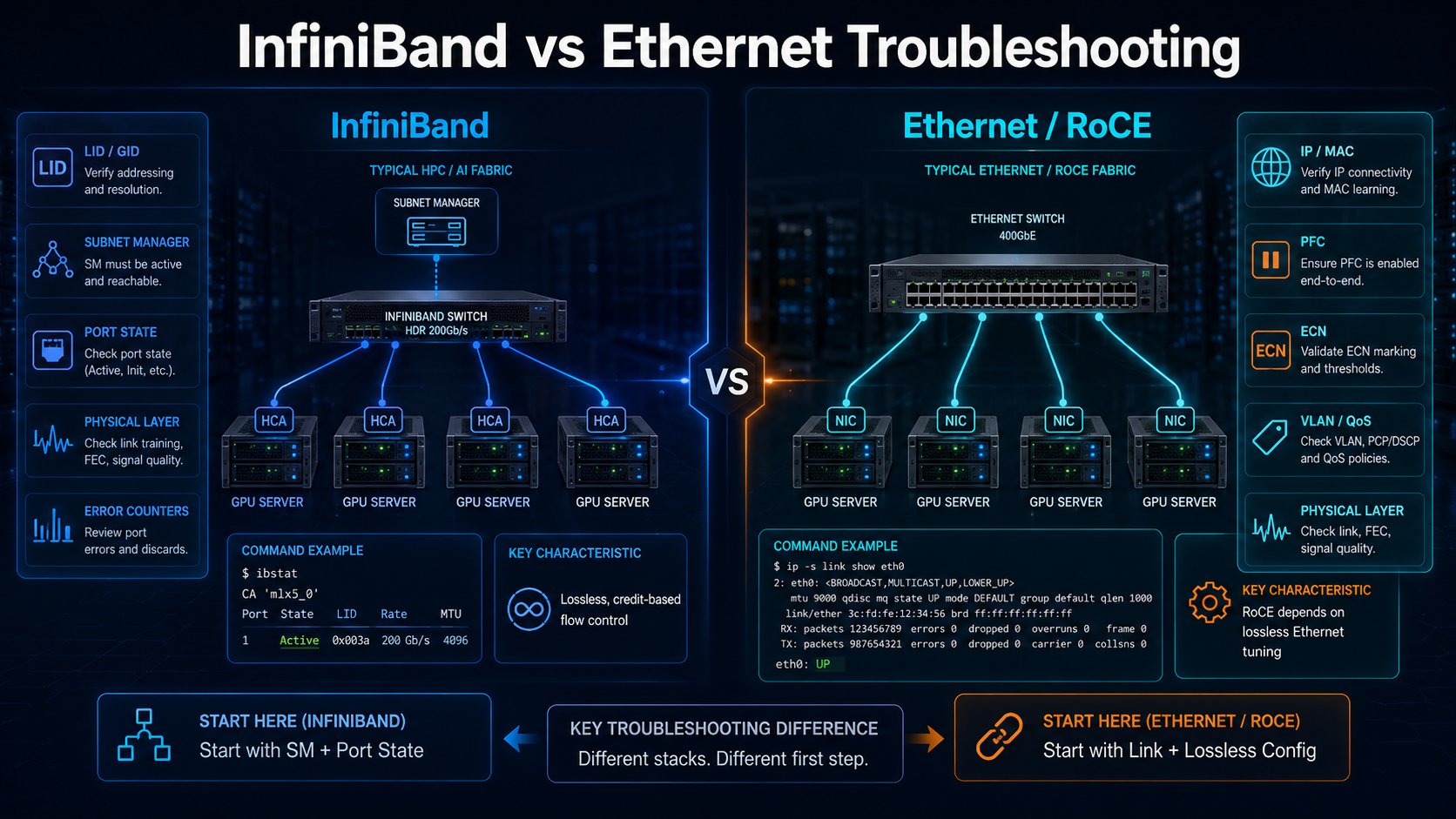
Before touching a single cable, it helps to understand why diagnosing an InfiniBand fabric is not the same as debugging Ethernet. The two interconnects look similar at the port level, but they behave differently under the hood.
InfiniBand employs an addressing mechanism based on Local Identifiers (LIDs) and Global Identifiers (GIDs). An InfiniBand fabric cannot initialize properly without a Subnet Manager (typically OpenSM or a vendor-supplied equivalent) running on the network—a requirement that does not exist for Ethernet. Because InfiniBand utilizes kernel bypass technology to achieve Remote Direct Memory Access (RDMA), an interface may appear “down” in the output of the `ip a` command while actually remaining fully operational; unless IPoIB is enabled, the interface itself is not assigned an IP address.
InfiniBand is also natively lossless, using credit-based flow control. RoCEv2 runs over Ethernet and typically relies on mechanisms such as Priority Flow Control (PFC) and Explicit Congestion Notification (ECN) to manage congestion and reduce packet loss. InfiniBand uses link-level flow control and its own congestion-management mechanisms. As a result, troubleshooting priorities differ: InfiniBand investigations often focus on link state, Subnet Manager behavior, fabric configuration, and port counters, while RoCE troubleshooting also requires careful examination of Ethernet QoS, PFC, ECN, and congestion-control configuration.
This matters for troubleshooting. When a link fails on InfiniBand, the fix is usually physical or subnet-manager related. When a link fails on RoCE, the fix is more often a lossless-Ethernet configuration problem. Knowing which interconnect you are on changes where you start looking.
Start at the Physical Layer: Cables, Optics, and Connectors
Here is the single most important rule of InfiniBand troubleshooting: check the physical layer first. Cables, transceivers, and connectors are cheap to swap and easy to misdiagnose. They are also, by a wide margin, the most common source of intermittent link problems.
DAC vs AOC vs Pluggable Transceiver: Failure Symptoms
InfiniBand links run over three main cable types, and each fails in a slightly different way.
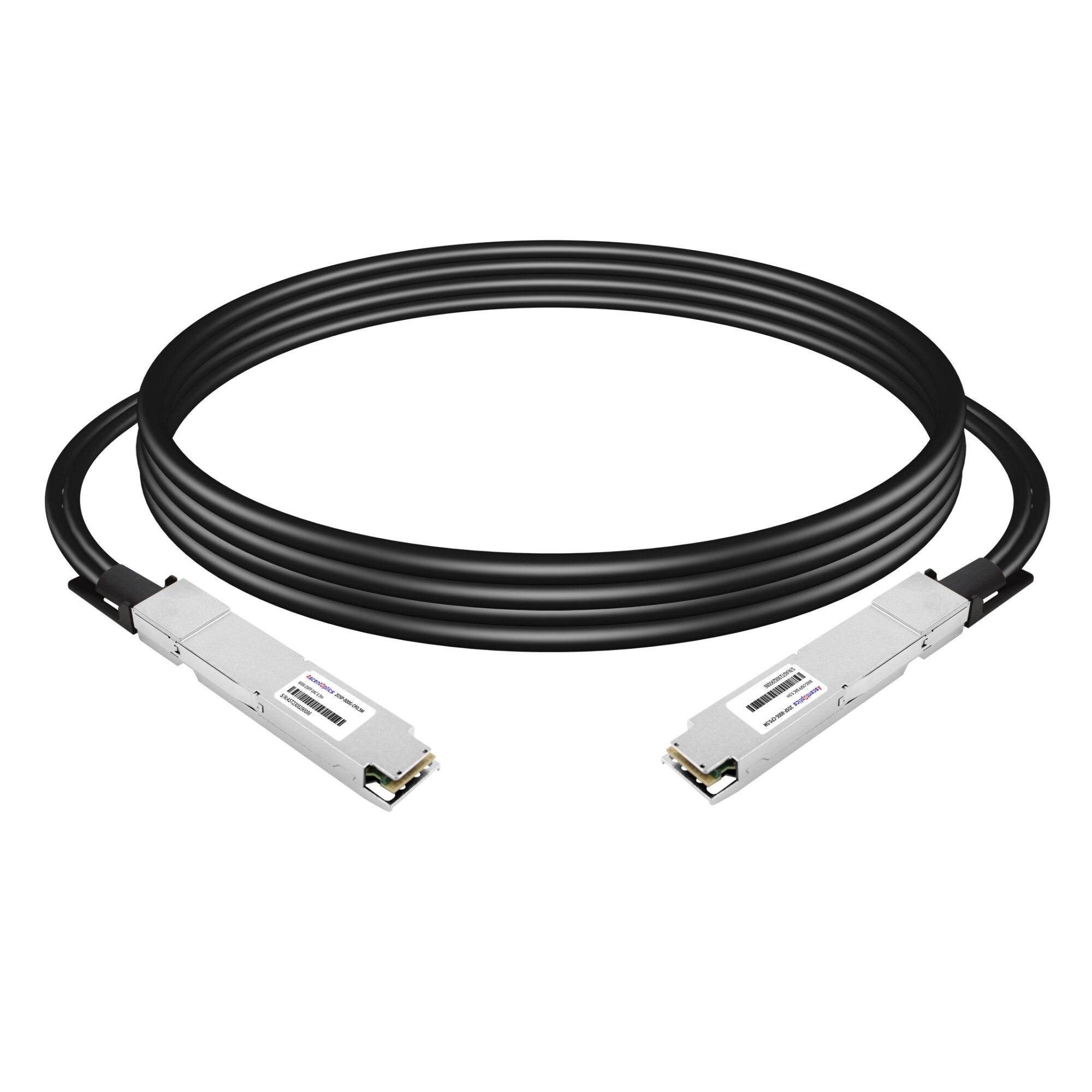
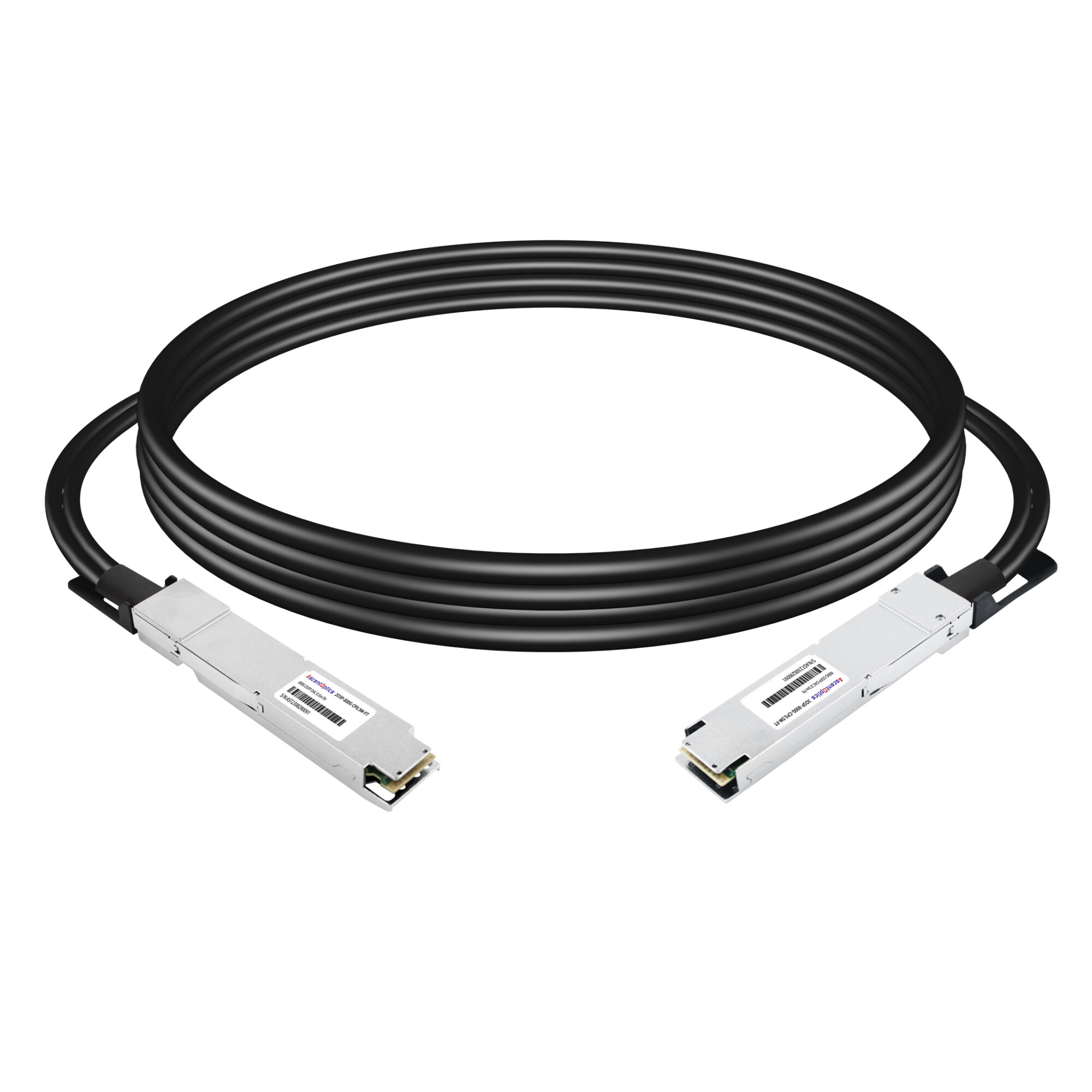
A direct attach copper (DAC) cable is passive and inexpensive, with a reach of roughly 0.5 to 3 meters. It draws almost no power and is immune to many optical issues, but it is sensitive to bend radius and signal integrity at higher speeds. A 400G or 800G DAC pushed half a meter past its rated reach can begin producing pre-FEC errors that never show up as a hard link down.
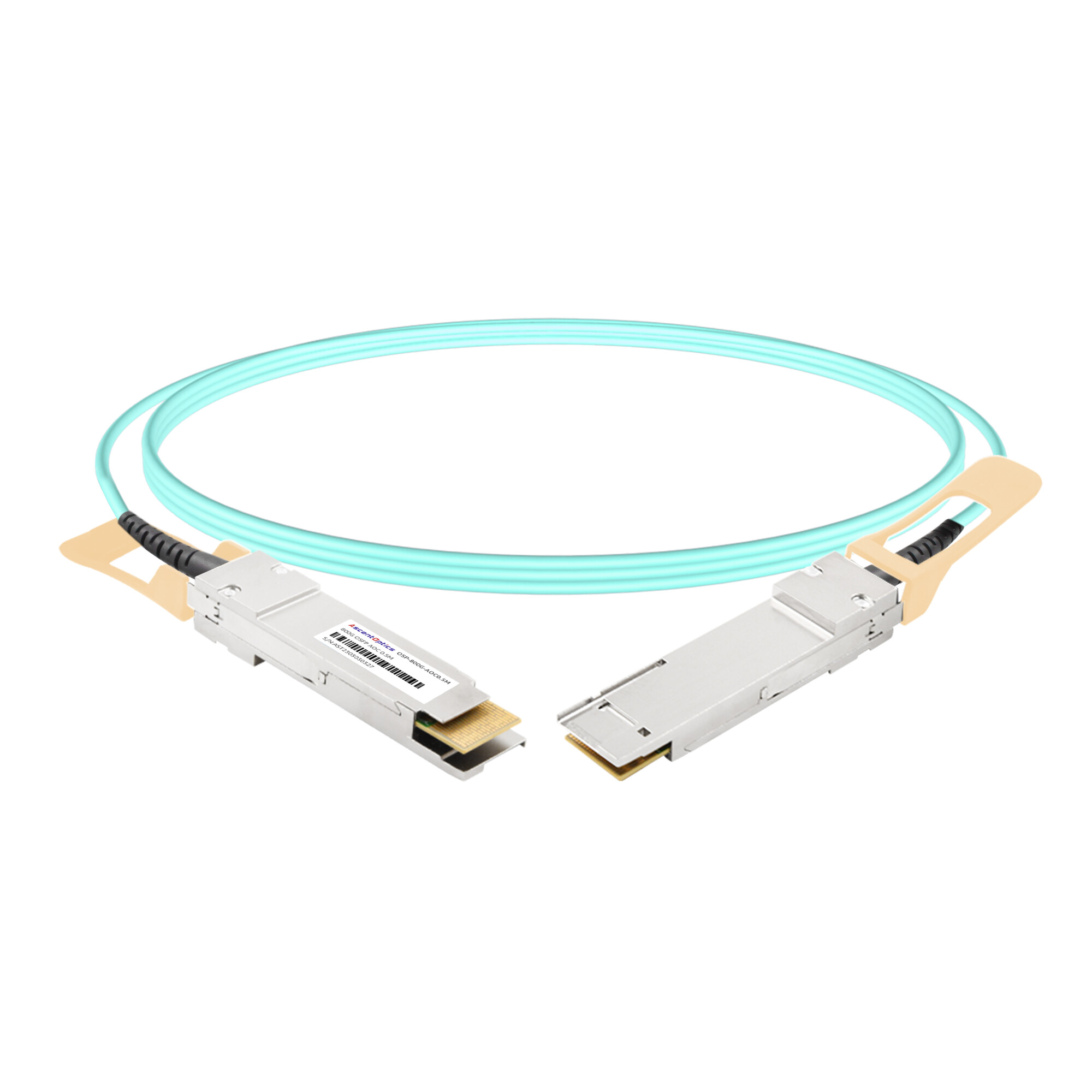
An active optical cable (AOC) converts electrical signals to light inside the connector, extending reach to around 3 to 100 meters, and up to 150 meters on HDR fabrics. AOC failures tend to be intermittent. The link trains, drops, and retrains as a transceiver or fiber inside the assembly degrades. For example, an intermittent link may appear healthy during a quick inspection but repeatedly flap under sustained traffic.
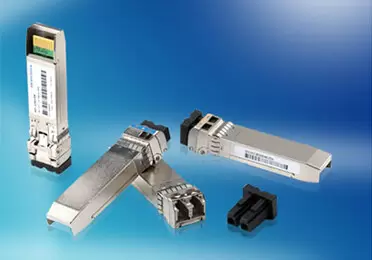
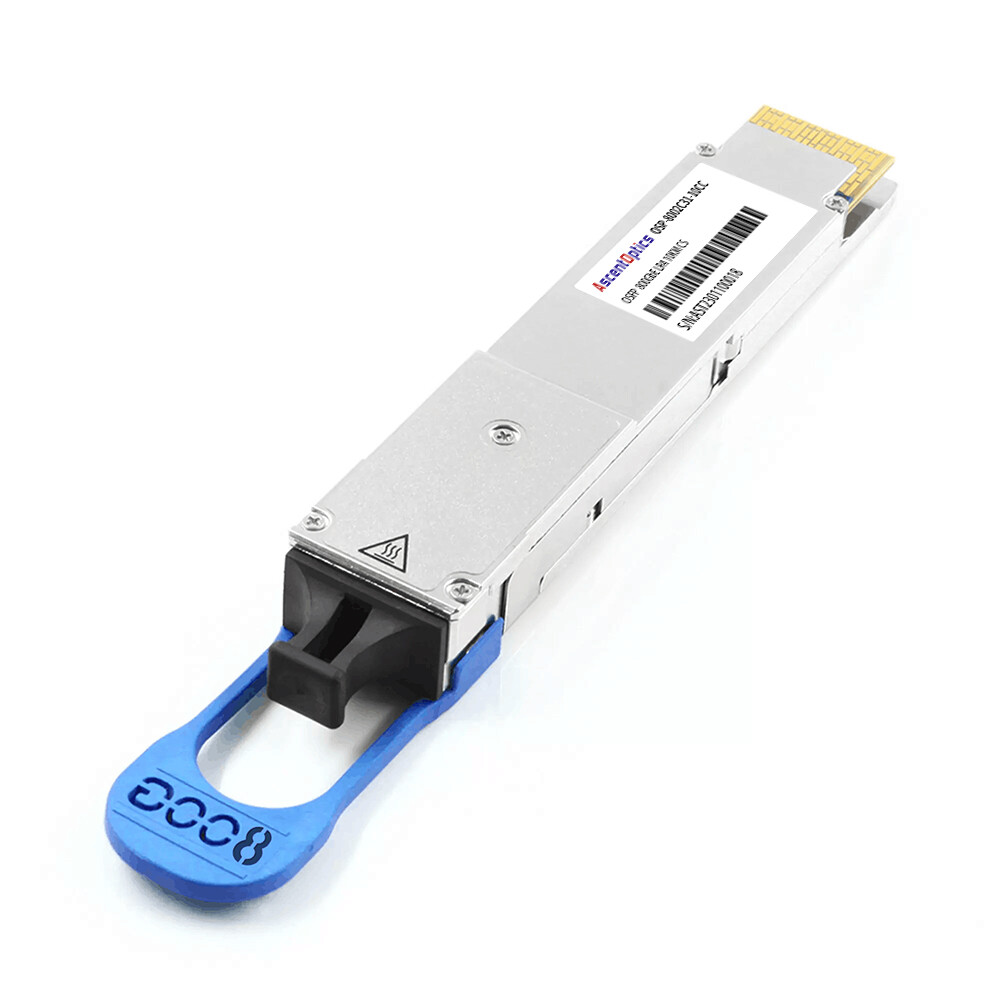
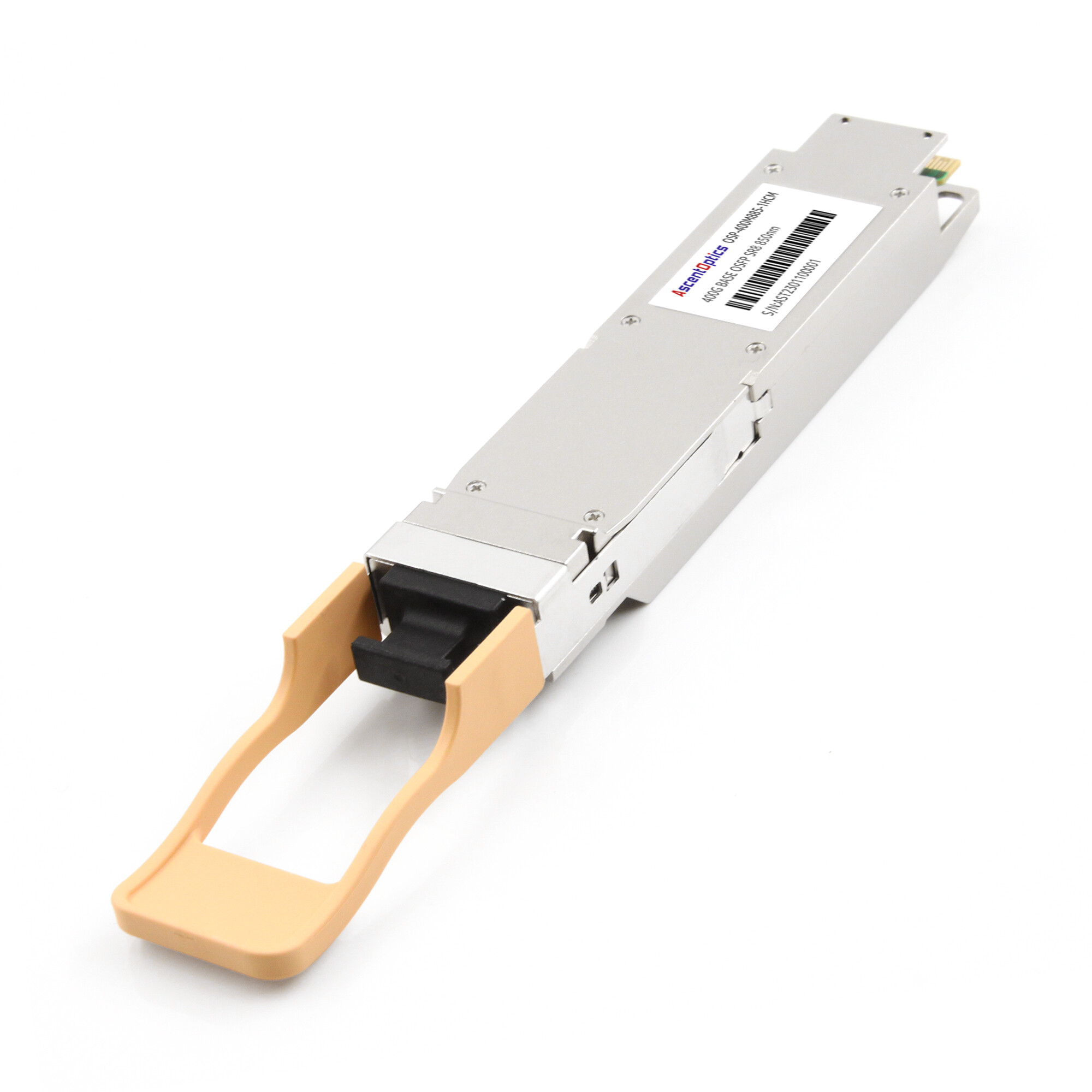
Pluggable optical transceivers paired with fiber provide greater flexibility for longer links. Depending on the transceiver type and fiber, InfiniBand optical links can support reaches from short data-center connections to several kilometers. Transceiver failures often surface as hard link-down events or as rising error counters rather than slow degradation.
The takeaway: match the failure pattern to the cable type. A hard down with no negotiation points to a broken DAC or transceiver. An intermittent link points to a marginal AOC or fiber connection.
Reading the Link-Diagnostic Codes
Modern InfiniBand switches, including the NVIDIA Quantum and Spectrum families, expose coded link-diagnostic values that tell you exactly why a port will not come up. These codes fall into two bands.
Physical-layer indications, numbered 0 through 1023, cover auto-negotiation failure, link training failure, bad signal integrity, remote fault, and speed degradation. Management indications, numbered 1024 through 2047, cover problems such as cable unplugged, bad or unsupported EEPROM, unsupported cable, module thermal shutdown, power budget exceeded, and shorted cable.
Some InfiniBand platforms provide vendor-specific link-diagnostic codes that can help identify why a port fails to establish a link. For example, NVIDIA platforms expose diagnostic information covering physical-layer and management-related conditions. The exact code ranges and meanings are vendor- and platform-specific, so administrators should consult the documentation for the specific switch or adapter model.
How to Isolate a Bad Cable or Optic vs. a Bad Port
Use this sequence to separate a physical fault from a config problem:
- 1. Reseat the cable at both ends and check the connector for debris or bent pins.
- 2. Swap in a known-good cable of the same type and recheck the port state.
- 3. Move the suspect link to a known-good port on the same switch. If it comes up, the original port is bad.
- 4. Move a known-good link onto the original port. If that fails too, the port or its configuration is the problem.
IBM documents this same isolation procedure for its InfiniBand switches, and it remains the fastest way to localize a fault without specialized test gear.
Diagnosing Port State: Why Your Link Won’t Come Up
In InfiniBand troubleshooting, the single most useful command is `ibstat`. It reports the status, physical state, link-layer information, and speed of each local HCA port. Once you learn to interpret the command’s output, you can resolve most link issues within minutes.
The Port State Reference Table
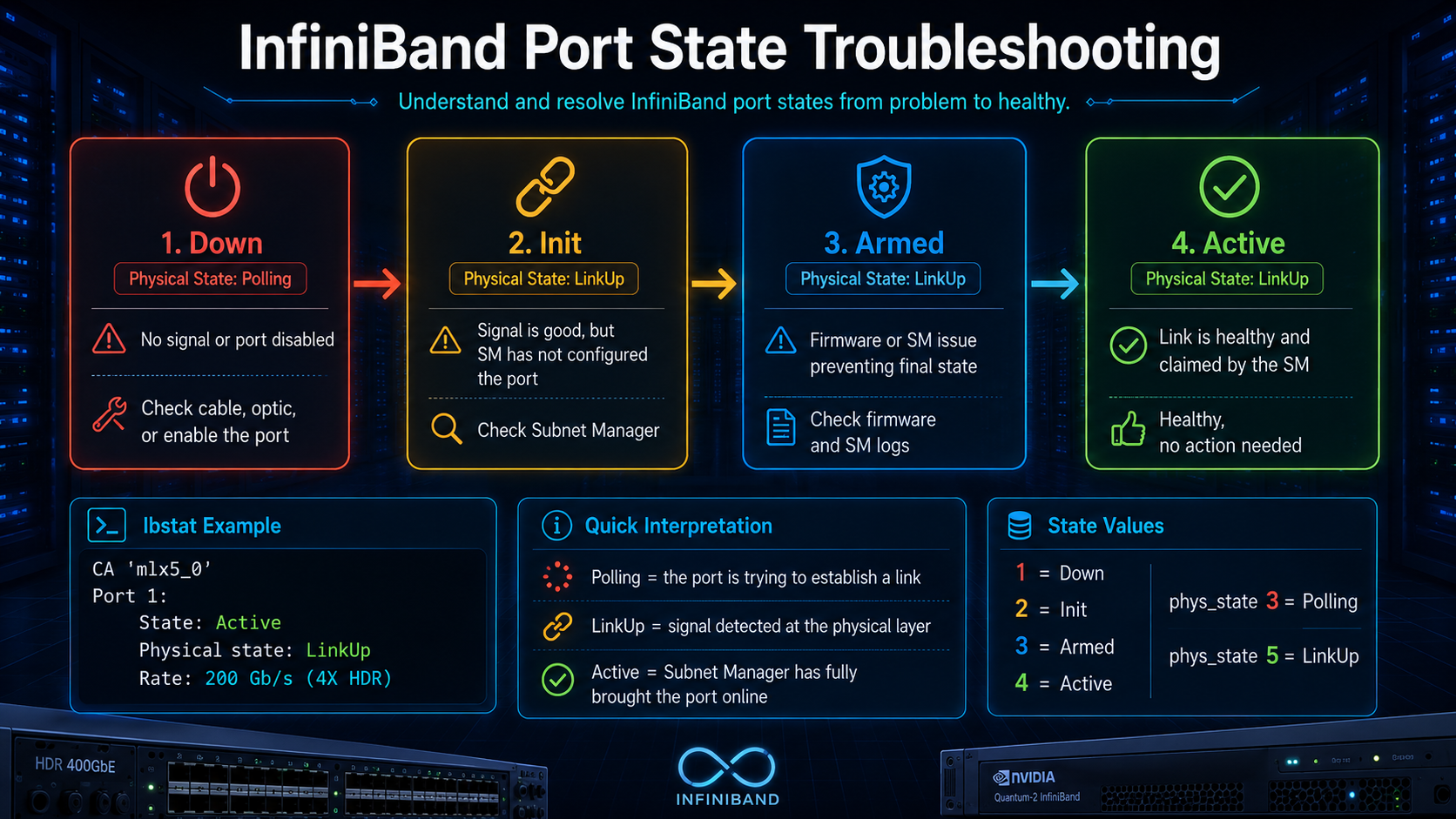
Ports operating normally should show an “Active” status, with a physical status of “LinkUp.” Any other status may indicate a potential issue.
| Port State |
Physical State |
What It Means |
What to Do |
| Active |
LinkUp |
The port is operational and has been configured by the Subnet Manager |
No action required |
| Down |
Polling |
The port has not established a link |
Check cable, optic, port configuration, and physical connectivity |
| Init |
LinkUp |
The physical link is established, but the port has not completed subnet initialization |
Check Subnet Manager and fabric configuration |
| Armed |
LinkUp |
The port has completed initialization but has not transitioned to Active |
Check SM configuration, partitioning, and related port state information |
At the low level, these states correspond to numerical values that can be read via the sysfs path `/sys/class/infiniband/*/ports/*/state`. A value of 4 indicates the “Active” state; 1 indicates “Down,” 2 indicates “Init” (Initializing), and 3 indicates “Armed” (Ready). The corresponding `phys_state` file should show a value of 5, indicating “LinkUp”; a value of 3 indicates the “Polling” state, signifying that the port is attempting to establish a link but has not succeeded.
The Subnet Manager: InfiniBand’s Single Point of Failure
Because the Subnet Manager controls fabric initialization and management, SM availability is critical to InfiniBand fabric operation. A properly configured redundant SM design can reduce the impact of an SM failure.
Multiple Subnet Managers can coexist in an InfiniBand fabric, but only one normally operates as the Master SM at a time. SM priorities are used to determine which instance becomes the Master, while standby SMs can provide failover. Troubleshooting should therefore focus on SM election, priority, reachability, and configuration conflicts rather than simply counting the number of running SM processes.
SM restarts also cause brief outages. Rebooting a node that hosts the SM can interrupt IPoIB communication for several seconds while a new master takes over. For critical fabrics, run the SM on dedicated management hosts rather than on compute nodes that reboot during jobs.
There are two other noteworthy signals: recurring “heavy sweep” entries in `/var/log/opensm.log` indicate physical-layer link flapping or a node stuck in a reboot loop; meanwhile, If two ports are Active but applications still cannot communicate, check the P_Key/partition configuration first, along with routing, MTU, application configuration, and other fabric policies. For OpenSM-based deployments, the partition configuration can be reviewed in the relevant partition configuration file. In the default partition settings, `0xffff` represents full membership, while `0x7fff` represents limited membership.
Reading Error Counters to Find Marginal Links
Not every bad link shows up as a port-down event. Marginal links hide in the error counters, slowly degrading performance until a job finally fails.
The most critical counters include `SymbolErrors`, `LinkDowned`, `LinkErrorRecovery`, and `RcvErrors`. A non-zero counter does not necessarily indicate a fault by itself. The more useful signal is whether an error counter increases consistently over time or during a representative workload. You can read these counter values using the `perfquery` command or via the sysfs path `/sys/class/infiniband/*/ports/*/counters/`.
There is a subtlety worth knowing. Link Level Retransmission (LLR) on FDR and faster links automatically corrects CRC errors at the link level. This is good for data integrity, but it can mask a degrading physical link by hiding symbol errors. The way to catch it is to monitor the LLR retransmission rate. Monitoring link-level retransmissions can also help identify marginal links. A sustained increase in retransmissions, especially when correlated with rising error counters or application performance degradation, should be investigated.
A practical workflow: clear the counters, run a representative workload or benchmark, then re-read the counters. A rapidly increasing error counter is a useful indicator that further investigation is required. Depending on the counter, possible causes include physical-layer degradation, link instability, congestion-related events, or link speed/width issues. Speaking of width, a common silent failure is a link that trains at 2x width instead of 4x. A 64-GPU NDR cluster running at 38% of expected all-reduce bandwidth was traced to exactly this: a single port negotiated down to half width.
The InfiniBand Diagnostic Toolkit
These are commands that every InfiniBand engineer should master. They belong to the `infiniband-diags` package.
1、ibstat and ibstatus display port status, physical status, and link-layer information.
2、sminfo is used to identify the master SM (Subnet Manager) and its priority.
3、ibnetdiscover and ibnodes are used to map the fabric topology.
4、ibdiagnet is the primary diagnostic tool for fabric health; it discovers the fabric topology, checks links, and flags faulty links as well as instances where error thresholds are exceeded.
5、perfquery is used to read port counters and error counters.
6、ibping uses vendor-specific MADs (Management Datagrams) to verify connectivity between two nodes.
7、ibtracert is used to trace the path between nodes.
8、ibclearerrors and ibclearcounters are used to reset counters before performing diagnostics.
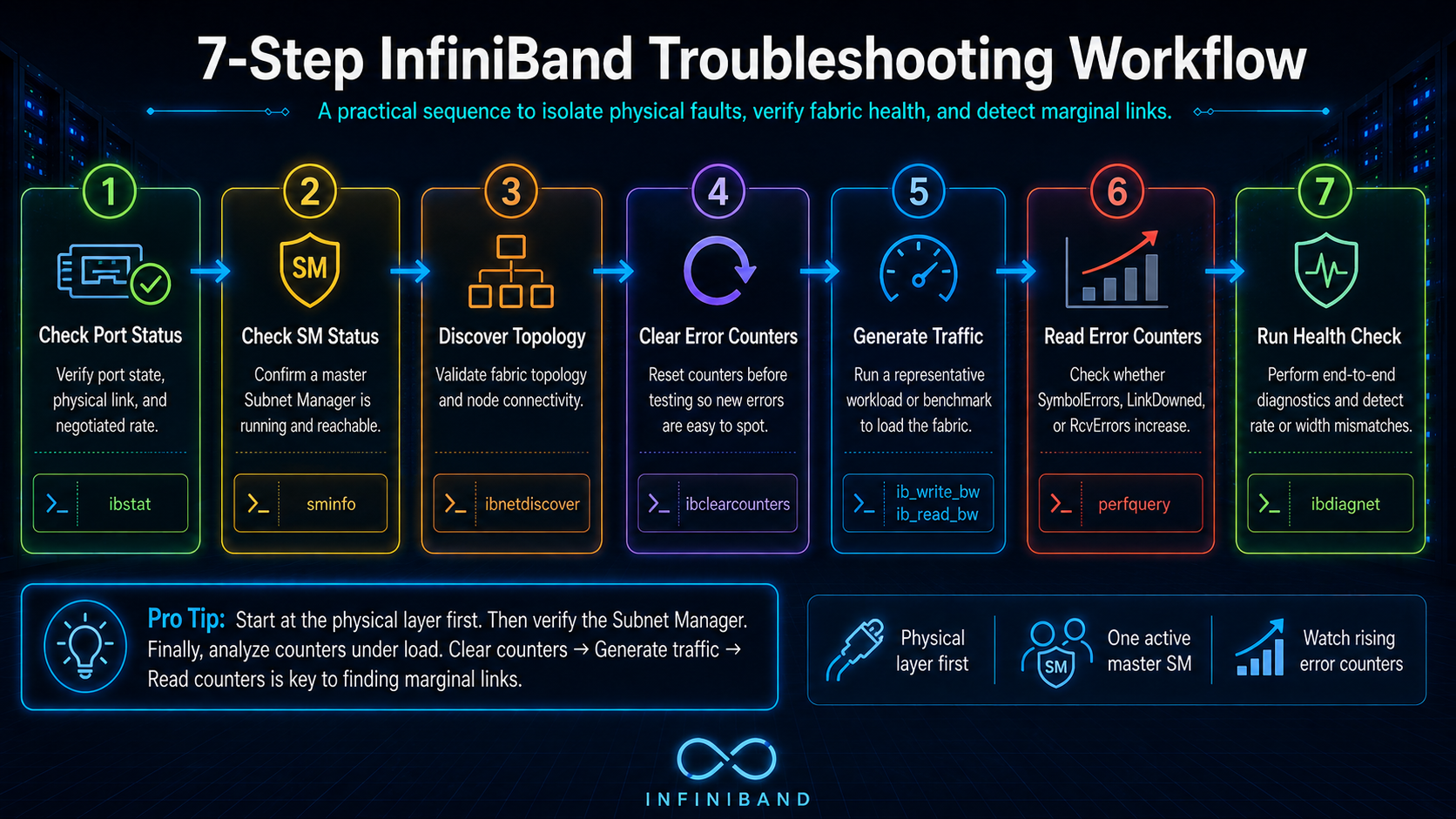
Bring these together into a repeatable seven-step sequence:
- 1. Run `ibstat` to check the status and link layer of each port.
- 2. Run `sminfo` to confirm the presence of an active master SM (Subnet Manager).
- 3. Run `ibnetdiscover` to confirm that the topology matches your design.
- 4. Use `ibclearcounters` to clear the counters.
- 5. Generate traffic through actual benchmarking or MPI jobs.
- 6. Use `perfquery` to re-check the counters and observe whether the values increase.
- 7. Run `ibdiagnet` to detect any rate or link-width mismatches across the network fabric.
Third-Party Transceiver and Cable Compatibility
One question comes up in nearly every InfiniBand deployment: will these third-party optics work in my switch and adapters? It is the highest-stakes compatibility question in the ecosystem, and the answer is more nuanced than “buy the vendor’s cables.”
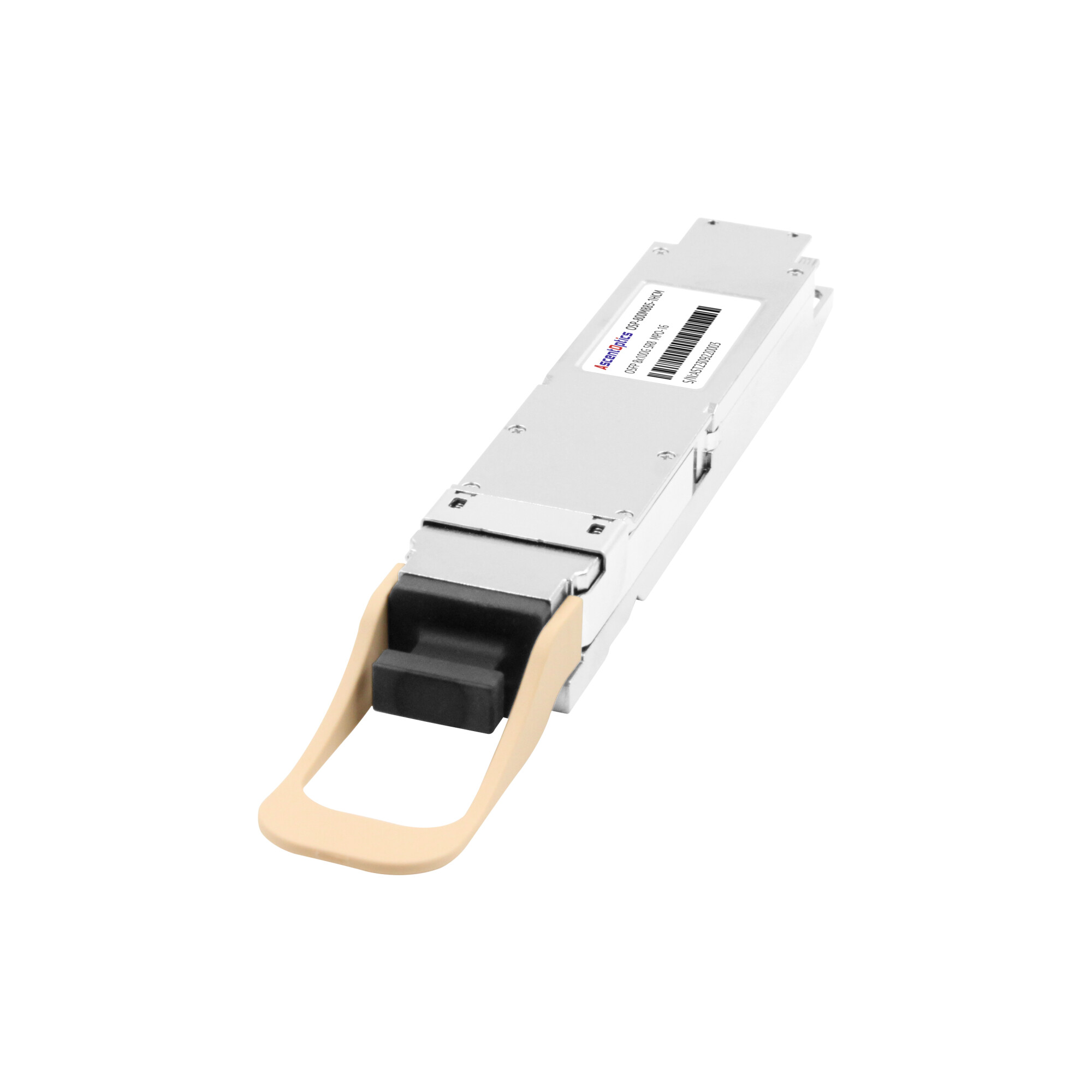
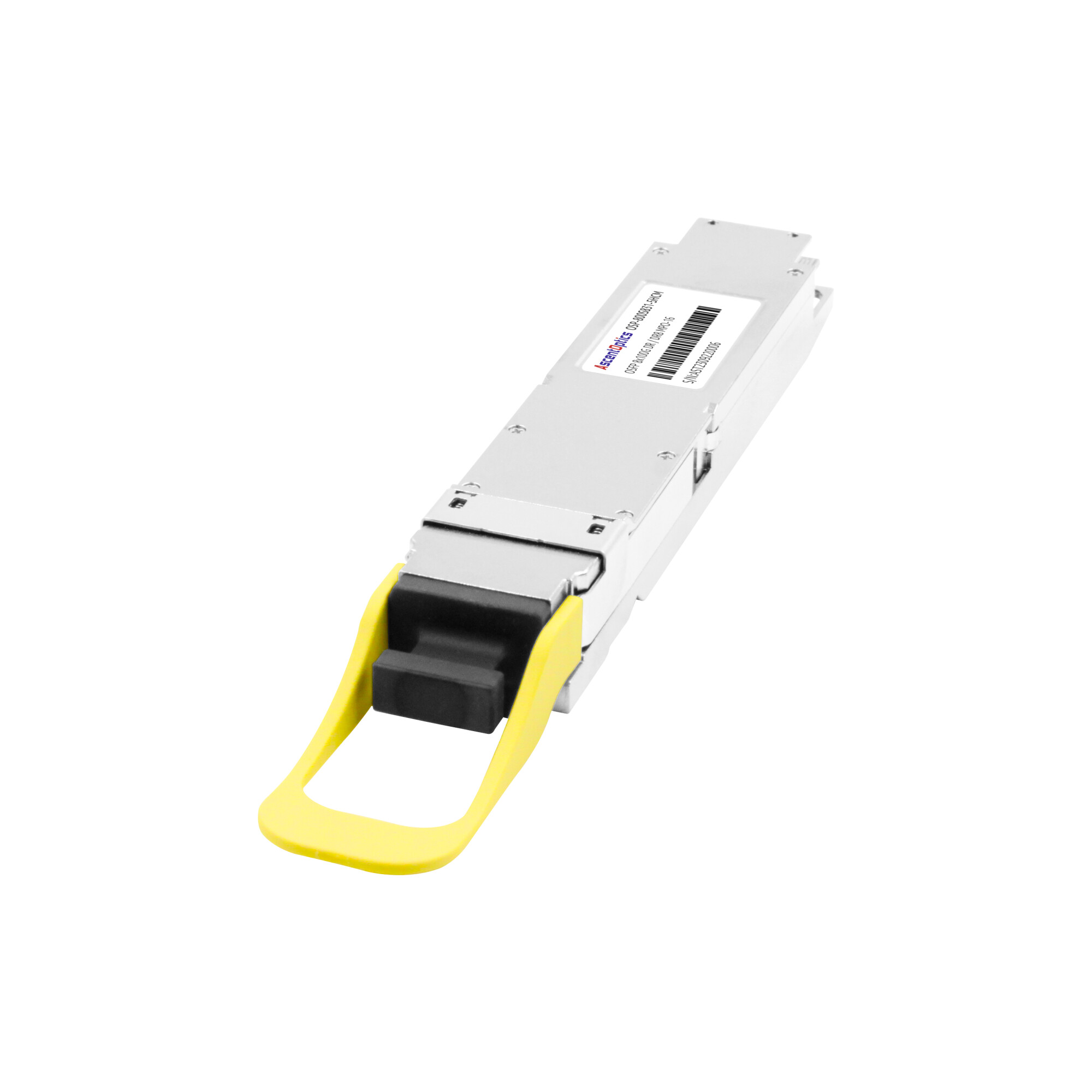
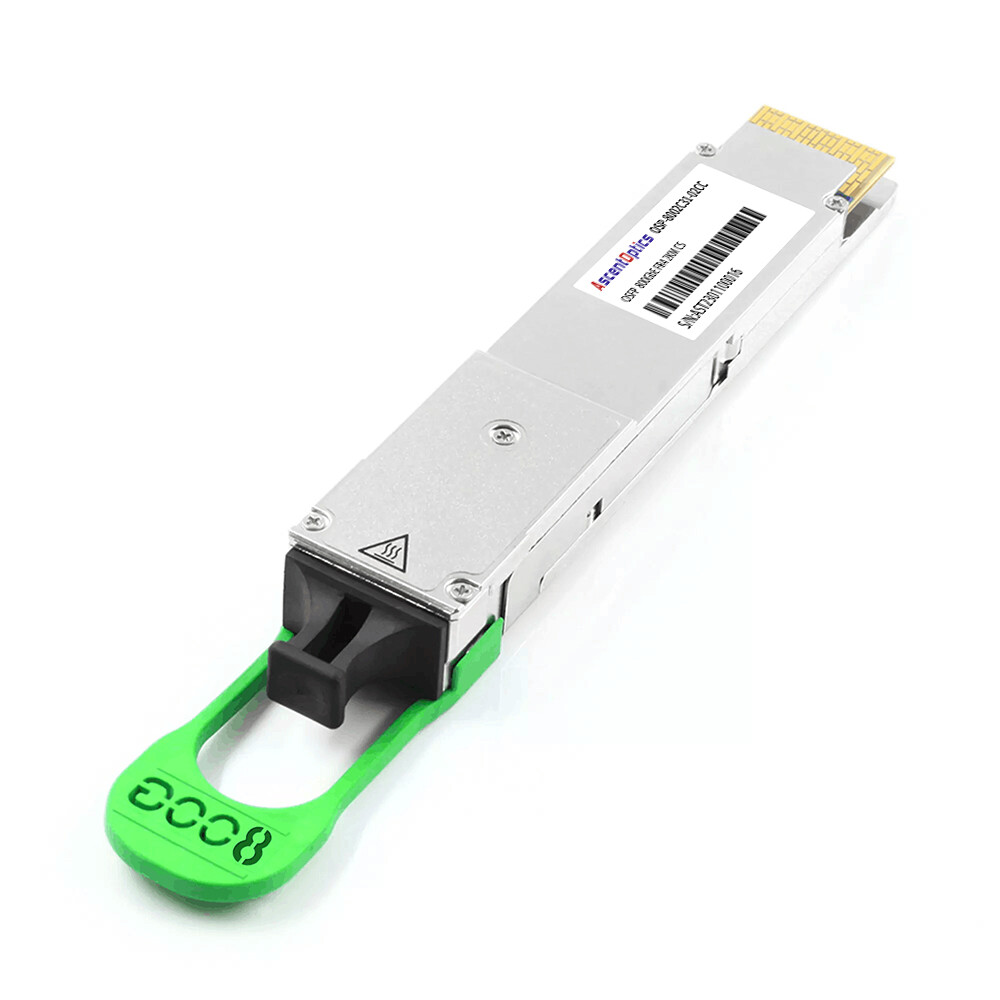
InfiniBand and Ethernet share the same QSFP, QSFP-DD, and OSFP form factors, but the two are not fully interchangeable. A QSFP28 module validated for Ethernet may not work in an InfiniBand port, and vice versa, because of minor signaling and EEPROM differences. QSFP56 for HDR is electrically related to QSFP28 but not backward compatible at the signal level. OSFP is not mechanically compatible with QSFP at all, so an OSFP module will not even seat in a QSFP cage.
Conclusion
InfiniBand troubleshooting rewards a disciplined, bottom-up approach. Most fabrics fail at the physical layer first, in a cable, optic, or connector, long before the subnet manager or the drivers deserve blame. Start there, and you will save hours of misdirected effort.
When addressing the next service interruption, keep the following three points in mind: check the `ibstat` output and port status table before modifying configurations; verify that only one master Subnet Manager is running on the system; and treat rising error counts as an early warning sign of poor link performance, rather than merely as insignificant noise.
When the problem does turn out to be a cable or transceiver, the fix should be quick and painless. Choose modules that are verified for your exact switch and adapter, and check compatibility before you buy rather than after a fabric fails to come up.
FAQ
1. What is the first step in InfiniBand troubleshooting?
Start with the physical layer. Check the cable, transceiver, connector, and port status before investigating software or configuration issues.
2. Which command is commonly used to check InfiniBand port status?
ibstat is one of the most useful commands. It shows the port state, physical state, link layer, and supported link speed.
3. What does an InfiniBand port in the Init state mean?
The physical link is established, but the port has not completed subnet initialization. Check the Subnet Manager and fabric configuration.
4. How can I tell if an InfiniBand cable or transceiver is faulty?
Replace the suspected cable or optic with a known-good one and test the link again. Moving the link to another known-good port can also help isolate the fault.
5. Why is my InfiniBand port Active but communication still fails?
Check P_Key/partition settings, routing, MTU, and application configuration. An Active port does not always guarantee end-to-end application connectivity.
6. Which InfiniBand counters should I monitor?
Commonly useful counters include SymbolErrors, LinkDowned, LinkErrorRecovery, and RcvErrors. Pay particular attention to counters that increase during traffic.
7. How do I check the health of an InfiniBand fabric?
Tools such as ibdiagnet, ibnetdiscover, iblinkinfo, and perfquery can help check topology, link status, errors, and port counters.
8. Are third-party optical transceivers compatible with InfiniBand?
Not necessarily. Physical form-factor compatibility does not guarantee interoperability. Always verify the module’s data rate, reach, optical specifications, and compatibility with the specific InfiniBand switch or adapter.
Post Views: 1,764